# LM Studio Web Chat
A modern, browser-based chat interface for multiple LLM backends (LM Studio, Ollama, OpenRouter) with **AI image generation** via ComfyUI.
## Features
- 🎨 **Multi-server support**: Connect to LM Studio, Ollama, or OpenRouter
- 🖼️ **Image generation**: Use `/genimg <prompt>` to generate images with ComfyUI
- 🔍 **Lightbox**: Click generated images to zoom
- 💾 **Chat persistence**: Multiple conversations with local storage
- ⚙️ **Configurable**: System prompt, API keys, server presets
- 📱 **Mobile-friendly**: Responsive design with collapsible sidebar
- 🎭 **Beautiful UI**: Purple theme with smooth animations
- 🔤 **Syntax highlighting**: Code blocks with copy button
- 📐 **LaTeX support**: Render math equations
- ⚡ **Streaming**: Real-time response streaming
- 🚦 **Loading indicators**: Spinners while waiting for responses
## Quick Start
### Prerequisites
- **Python 3.8+** (for the web server and MCP backend)
- **Node.js** (optional, for dependencies via npm if needed)
- **ComfyUI** (for image generation) running on port 8188
- **LM Studio** or **Ollama** (for chat)
### 1. Start ComfyUI (for image generation)
```bash
# In your ComfyUI directory
python main.py
# ComfyUI should be available at http://127.0.0.1:8188
```
### 2. Start the application
Run the startup script that launches both the web server and MCP backend:
```bash
./start.sh
```
Or manually:
```bash
# Terminal 1: Web server (serves frontend on port 8084)
python3 -m http.server 8084
# Terminal 2: MCP server (backend for image generation)
cd backend
uvicorn mcp_server:app --reload --port 8085
```
### 3. Open the interface
Navigate to: **http://localhost:8084**
### 4. Connect to your LLM
- **LM Studio**: Select "LM Studio Local" → Click Connect (ensure LM Studio server is running on port 1234)
- **Ollama**: Select "Ollama Local" → Click Connect (Ollama must be running on port 11434)
- **OpenRouter**: Select "OpenRouter" → Enter your API key → Connect
### 5. Start chatting!
Type your messages normally, or generate images with:
```
/genimg a beautiful astronaut in space looking at Earth
```
## Screenshots 📸


## Setup Instructions
### For Desktop Users
1. Download the `index.html` file from this repository.
2. Save it to a location on your computer that you can easily access.
### For Mobile Users
This works out of the box on Android devices. For iOS you need to open the file in Microsoft Edge or another browser. Safari/Chrome do not work.
There are several ways to get the `index.html` file on your mobile device:
1. **Direct Download**:
- Open this repository on your mobile device's web browser.
- Find the `index.html` file and download it directly to your device.
2. **Email to Yourself**:
- Download the `index.html` file on your computer.
- Email it to yourself as an attachment.
- Open the email on your mobile device and download the attachment.
3. **Cloud Storage**:
- Upload the `index.html` file to a cloud storage service like Google Drive, Dropbox, or iCloud.
- Access the file from your mobile device using the respective cloud storage app.
4. **File Transfer Apps**:
- Use apps like AirDrop (for iOS devices) or nearby sharing (for Android devices) to transfer the file from your computer to your mobile device.
## Usage Instructions
1. **Start LM Studio Server**:
- Open LM Studio on your computer.
- Go to the "Server" tab (In 0.3.x -> Developer -> Local Server).
- Ensure that CORS is enabled and Serve on Local Network is enabled.
- Click "Start Server" and note down the server address.
2. **Open the Chat Interface**:
- On desktop: Double-click the `index.html` file to open it in your default web browser.
- On mobile: Use a file manager app to locate the downloaded `index.html` file and open it with your web browser.
3. **Connect to LM Studio Server**:
- In the chat interface, enter the LM Studio server address in the input field at the top.
- Click the "Connect" button.
4. **Start Chatting**:
- Once connected, you can start typing messages in the input field at the bottom of the screen.
- Press Enter or tap Send to send your message.
- The model's responses will appear in the chat window.
## Troubleshooting
- **Can't connect to server**:
- Ensure LM Studio Server is running on your computer.
- Check that you're using the correct server address.
- If accessing from another device, make sure both devices are on the same network.
- **Slow responses**:
- LM Studio processing speed depends on your computer's capabilities. Larger models may take longer to respond.
- **Interface not loading**:
- Try opening the `index.html` file with a different web browser.
## Security Note
This interface is designed for local use only. Do not expose your LM Studio server to the public internet without proper security measures in place.
## Feedback and Contributions
This is a personal project. While the code is public for anyone to use and learn from, I am **not accepting pull requests** for new features or bug fixes. If you find an issue or have a suggestion, please open an issue to discuss it.
Pull Requests are automatically closed and not welcome.
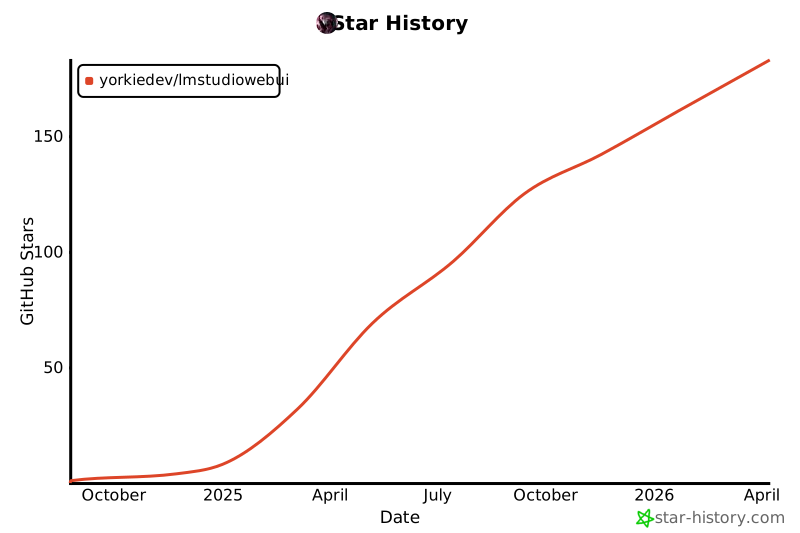
## Star History
[](https://star-history.com/#YorkieDev/LMStudioWebUI&Date)